
One entry per ISO
Every ISO on the drive appears in the boot menu by its file name. Press Enter and Bootrix picks the right way to start it.
Preview release · free to use
Bootrix turns a USB flash drive into a multiboot drive. Copy your .iso files onto it, start a computer from the drive, and pick what to run from a clean boot menu. No re-formatting every time you add or remove an ISO.
For Windows 10 and 11 (64-bit). Works on PCs with UEFI or Legacy BIOS.
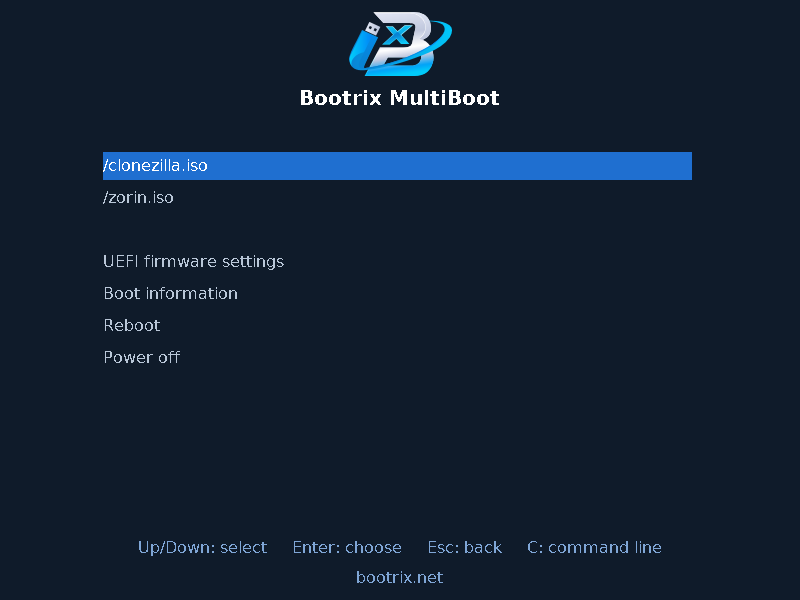
Every ISO on the drive appears in the boot menu by its file name. Press Enter and Bootrix picks the right way to start it.
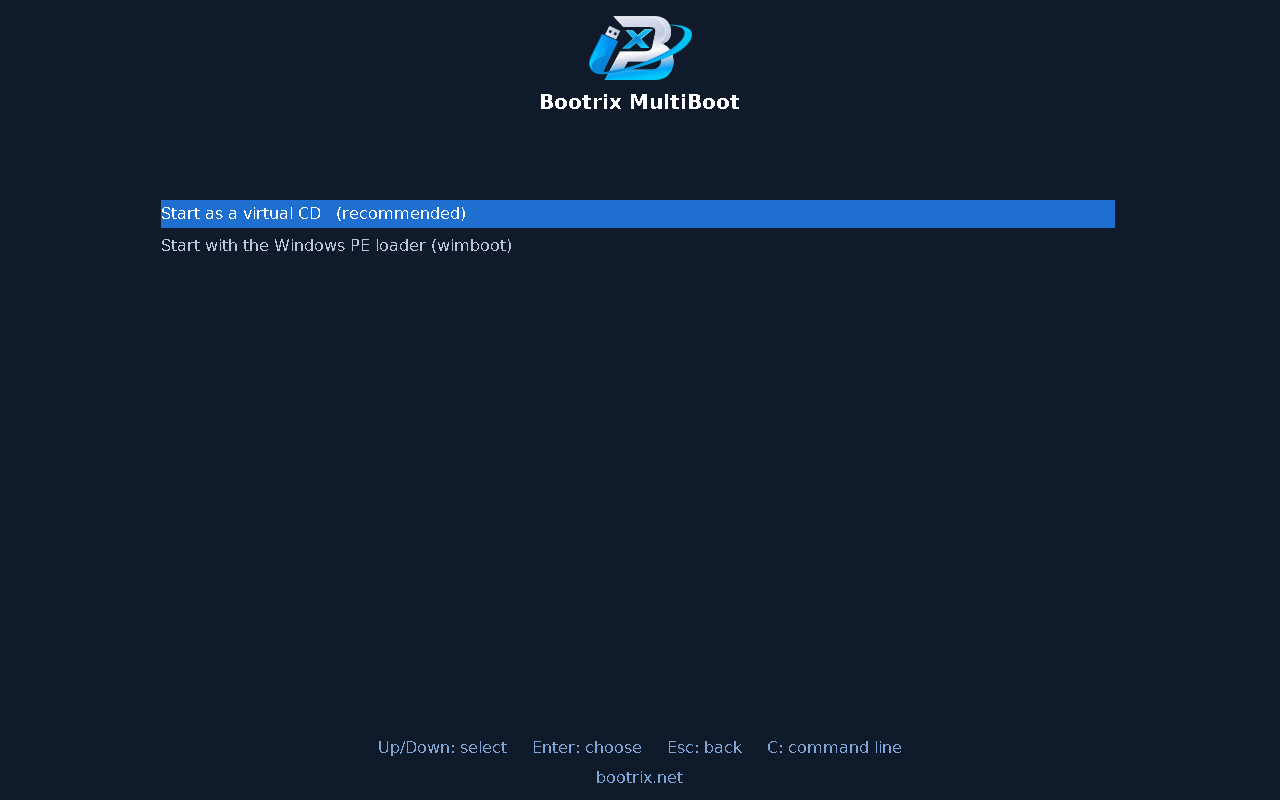
Windows setup media, Windows PE tools and live Linux images, started from the ISO file itself – nothing is extracted or converted.
On UEFI computers, Windows PE rescue discs can be shown to the firmware as a real CD drive, so they start the way they do from a disc.
One drive, both kinds of computer. MBR and GPT drives are supported.
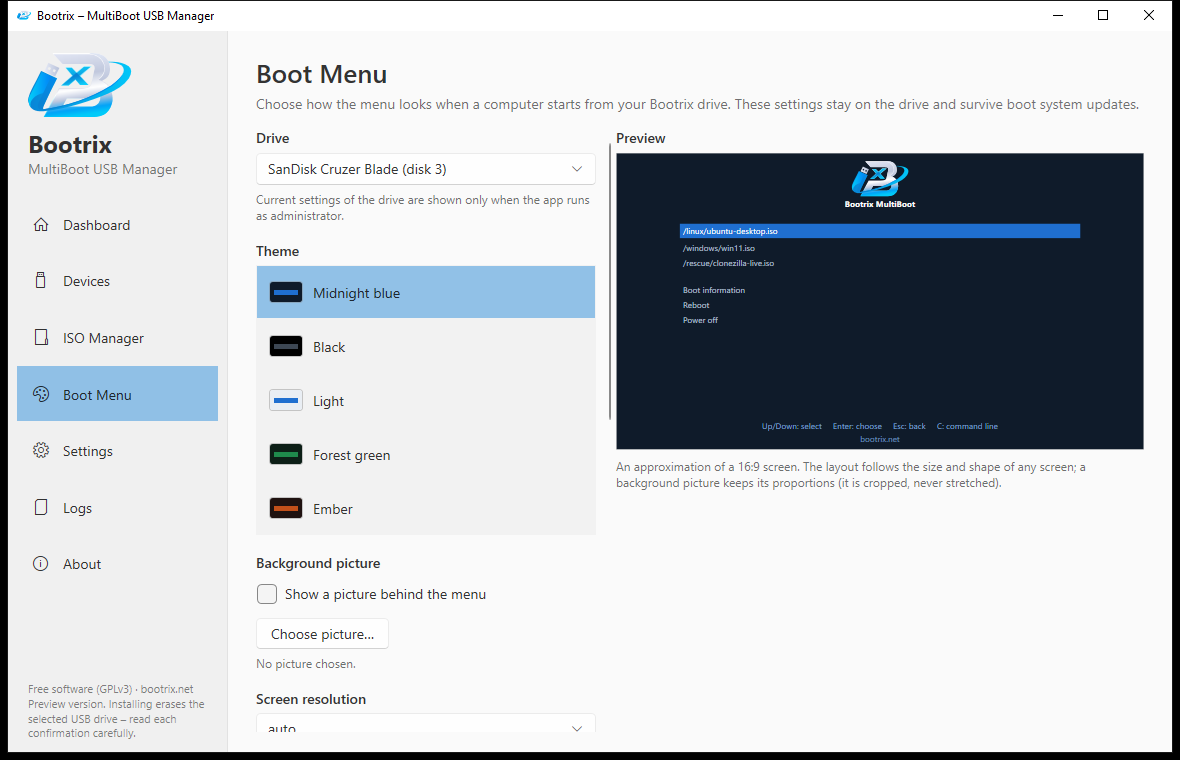
Choose a theme, a text size, your screen resolution, and even your own background picture. The menu adapts to any screen shape.
Open a newer Bootrix, see that your drive can be updated, and update it. Your ISO files are never touched by an update.
Bootrix never lets you pick your Windows disk, asks you to type a confirmation before erasing anything, keeps a backup before updating, and stops with a clear message if the drive is unplugged.
Bootrix is freeware: no price, no account, no ads in the app. It is built on proven open-source parts: GRUB 2, wimboot and efifs.
Open Bootrix, choose your USB drive and press Install. Bootrix shows exactly what will be erased and asks you to type a confirmation.
The drive gets a large data partition named BOOTRIX. Copy .iso files to it with File Explorer or the ISO Manager. Delete them the same way.
Start a computer from the drive (usually with F12, F11, F9 or Esc) and pick an ISO from the menu.
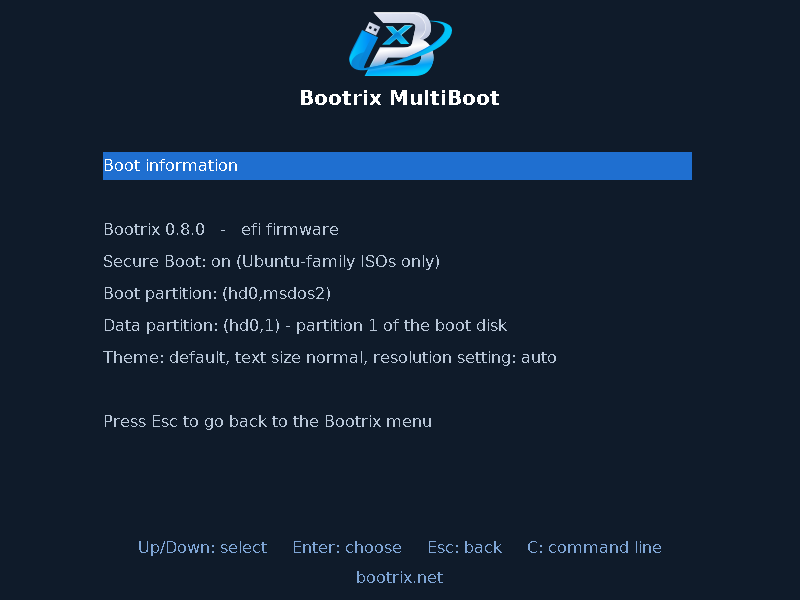
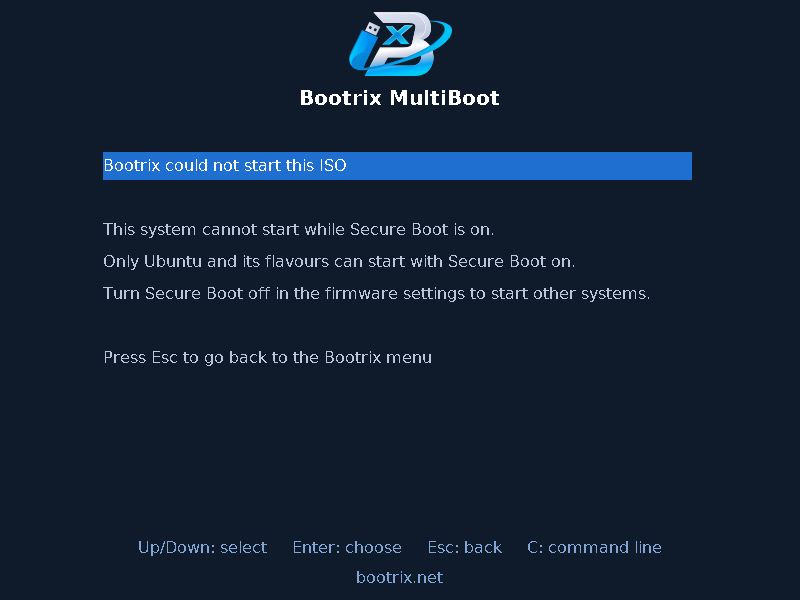
Ubuntu and its flavours can start with Secure Boot on. The first time you start a computer from the drive, you tell that computer to trust the Bootrix key. You do this once per computer. Debian-based systems (Debian Live, Clonezilla…) also start once you enrol a second key, debian-secureboot-ca.cer. Windows tools and other Linux systems still need Secure Boot turned off.
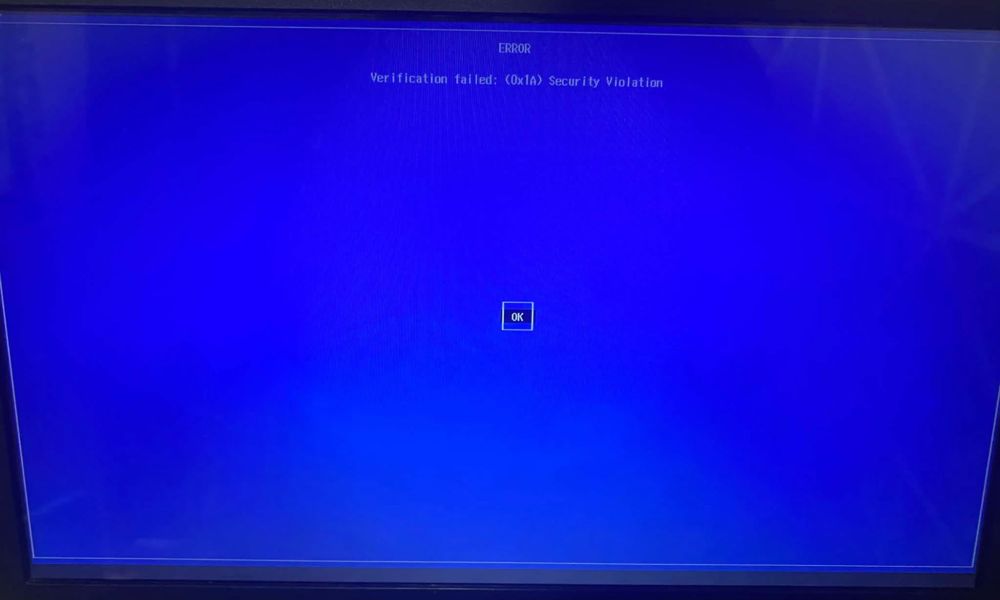
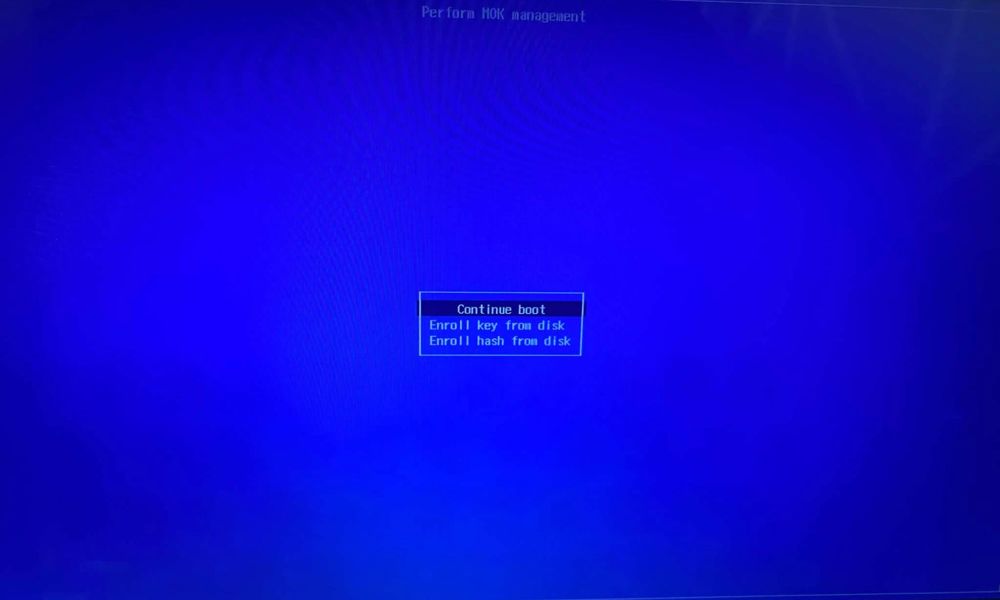
If a blue “Perform MOK management” screen does not appear by itself, restart and start from the drive again.
Then the file bootrix-secureboot-key.cer.
Choose Continue, then Yes to enrol the key, then Reboot.
Repeat steps 1–3 and this time choose debian-secureboot-ca.cer. It is Debian’s public Secure Boot certificate, taken from Debian’s own boot loader. Skip this step if you only use Ubuntu.
The Bootrix menu now appears with Secure Boot still on. Other ISOs show a message that Secure Boot must be turned off.
Tested on a real Acer laptop: Ubuntu 26.04.1 reached its desktop session with Secure Boot on. The Debian key step is tested in an emulator only so far. If your computer shows an error here or the menu does not appear after enrolling, turn Secure Boot off in the firmware settings – Bootrix then starts as usual.
Bootrix lists an ISO as working only after it has been tried. This is a preview release and the list is short on purpose. Other ISO files may work, but we do not claim it until we have tested them.
| ISO | UEFI | Legacy BIOS |
|---|---|---|
| Windows 10 and Windows 11 (64-bit) | Starts Windows Setup – real PCs | Windows 10 starts Setup – real PC |
| Clonezilla Live | Works – real PC | Works – real PC |
| Hiren’s BootCD PE | Reaches the desktop (virtual CD) – real PC | Too large for Legacy BIOS |
| Sergei Strelec WinPE | Reaches the desktop (virtual CD) – real PC | Not supported |
| Ubuntu 26.04.1 Desktop (amd64) | Reaches the live session – real PC, also with Secure Boot on | Reaches the live session – real PC |
| Debian Live 13.7.0 (Cinnamon, amd64) | Reaches the desktop – real PC (Secure Boot off) | Reaches the desktop – real PC |
| Zorin OS 18 | Emulator only (also with Secure Boot on) | Emulator only |
| Windows 10 32-bit | Cannot start in UEFI mode | Not tested |
Bootrix is a single portable .exe file – nothing to install. Version 0.8.1, preview release (about 64 MB).
Free. Windows 10 / 11, 64-bit. Run as administrator to write to a USB drive.
SHA-256: 4791b81ac2273416660803ced8f56cc0b8233f7eecaf8d20ab50a6ff37215add
Bootrix is a new program and is not code-signed yet, so Windows SmartScreen shows this warning for it. Click More info, then Run anyway. Your browser may also ask you to confirm the download. To be sure the file is the real one, compare its SHA-256 with the one above (in PowerShell: Get-FileHash Bootrix-0.8.1-portable-win-x64.exe).
Yes. It costs nothing and you may use it for anything.
Installing Bootrix on a drive erases that drive, and Bootrix tells you so and asks you to type a confirmation first. After that, adding or removing ISO files is just copying files, and updating Bootrix keeps your ISO files.
Bootrix only offers USB drives, never lets you select the disk Windows runs from, and double-checks the disk again right before writing. External hard disks are blocked unless you turn them on in Settings.
Bootrix stops at once, explains what happened, and tells you what to do: plug the drive in again and run the step again. Please do not unplug the drive while Bootrix is working.
No. When a live Linux system starts from an ISO file, it keeps the drive that holds the ISO mounted for itself, so the file manager cannot mount it a second time (“already mounted or mount point busy”). Ventoy behaves the same way. The files are still reachable: in the file manager press Ctrl+L and type /isodevice, or run ls /isodevice in a terminal.
Partly. Ubuntu and its flavours can start with Secure Boot on: the first time, a blue screen asks you to enrol the Bootrix key (Enroll key from disk, drive BOOTRIX-EFI, file bootrix-secureboot-key.cer). Ubuntu is confirmed on a real laptop. Debian-based systems (Debian Live, Clonezilla) also start after you enrol debian-secureboot-ca.cer the same way; that is tested in an emulator only so far. Windows tools and other Linux systems (Fedora…) need Secure Boot turned off in the firmware settings.
See the compatibility table above. We only list what we have actually tested, and we keep that list up to date.
Bootrix is young. It has been tested on real computers, but not on many, so please keep your important data backed up.
Bootrix is a free multiboot USB manager. It is made to be simple to use and safe: it asks before it erases anything, and it never touches the disk Windows runs from.
Developer: John Carlo Fabon
Bootrix is freeware (licence agreement). If it saves you time and you would like to support its development, a donation is welcome but never required.
Donations are voluntary and do not unlock anything – every feature is free for everyone.